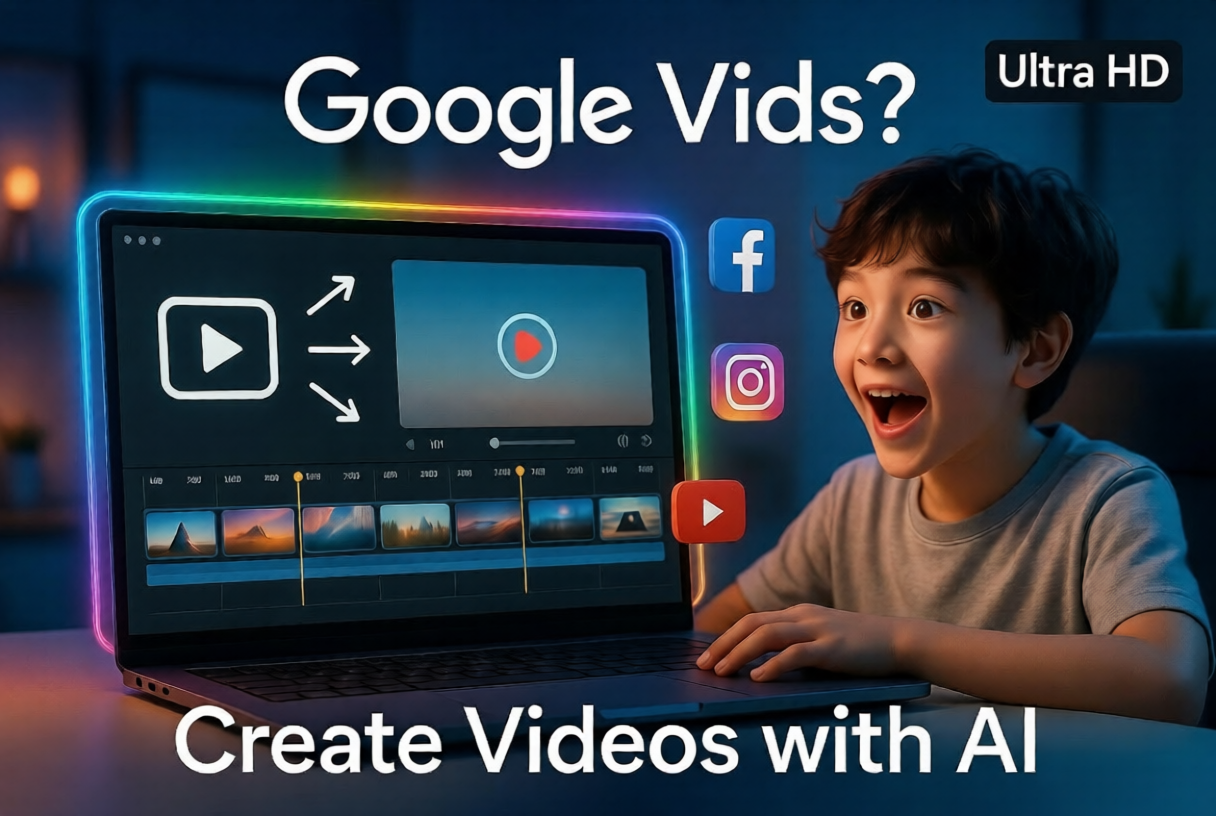
What is Google Vids? A Simple Guide for Beginners in 2026
Table of Contents
- Introduction
- What is Google Vids
- How Google Vids Works
- Key Features of Google Vids
- Step by Step Guide to Use Google Vids
- My Personal Experience Using Google Vids
- Tools and Resources You Can Use with Google Vids
- Common Mistakes to Avoid
- Tips for Better Results
- Conclusion
- FAQs
If you have been creating content online, you probably noticed one thing. Video is everywhere. Whether it is YouTube, Instagram, or even blog platforms, video content is growing fast.
Recently, I came across something called Google Vids. At first, I thought it was just another random tool. But after trying it for a few days, I realized it actually has potential, especially if you are into content creation or social media marketing automation.
In this blog, I will explain what Google Vids is, how it works, and how you can actually use it in your daily workflow. I will also share some personal insights that might save you time.
What is Google Vids
Google Vids is a video creation and collaboration tool introduced by Google. It is part of the Google Workspace ecosystem, which means it connects easily with tools like Google Docs, Slides, and Drive.
In simple words, Google Vids helps you create videos using AI and templates without needing advanced editing skills.
It is designed for:
- Content creators
- Businesses
- Marketers
- Teams working on presentations
The interesting part is that it combines AI with storytelling. So instead of starting from scratch, you get suggestions, scripts, and layouts.
How Google Vids Works
Google Vids works in a pretty simple way. You start by giving a prompt or idea, and the AI helps you generate a video structure.
Here is what usually happens:
- You enter a topic or script idea
- The AI suggests scenes and content
- You add images, clips, or text
- You edit and arrange everything
- Export or share your video
It feels a bit like making a presentation, but smarter.
This is where it becomes useful for people who use ai social media tools or want to automate content posting. Instead of spending hours editing, you can create quick videos for your content strategy.
Key Features of Google Vids
1. AI Powered Video Creation
You do not need to think too much about structure. The AI gives you a starting point.
2. Easy Collaboration
If you have used Google Docs, you already know how this works. Multiple people can edit the same video.
3. Templates for Fast Creation
There are ready made templates for different use cases like marketing, tutorials, or presentations.
4. Integration with Google Workspace
You can pull content directly from Google Drive, which saves a lot of time.
5. Beginner Friendly Interface
Even if you are not a video editor, you can still use it easily.
Step by Step Guide to Use Google Vids
If you are just starting, follow this simple process.
Step 1: Open Google Vids
Go to your Google Workspace and find the Vids tool. It might still be rolling out, so availability can vary.
Step 2: Choose a Template or Start Blank
If you are new, I recommend using a template. It makes things easier.
Step 3: Add Your Idea
Enter your topic. For example, a short video about automate instagram posts or social media automation tools.
Step 4: Let AI Generate Structure
The tool will suggest scenes like intro, main content, and ending.
Step 5: Customize Your Content
Add:
- Text
- Images
- Clips
- Voiceovers
Step 6: Edit and Adjust
Change timing, transitions, and layout based on your style.
Step 7: Export or Share
Once done, export your video or share it directly with your team.
My Personal Experience Using Google Vids
I tried Google Vids while working on content for my blog and LinkedIn.
At first, I was a bit confused. I expected it to work like advanced editing software, but it is actually simpler. It is more about speed than perfection.
One thing I liked was how quickly I could turn an idea into a video. For example, I created a short video explaining social media marketing automation in less than 30 minutes.
But I also made mistakes.
In the beginning, I relied too much on AI suggestions. The result felt a bit generic. After a few tries, I realized you still need to add your own touch.
Another thing I noticed is that it works really well when you combine it with tools that schedule social media posts. You can create videos quickly and then publish them consistently.
Tools and Resources You Can Use with Google Vids
To get better results, you should combine Google Vids with other tools.
1. Free Social Media Scheduler
Tools like Buffer or Publer help you schedule social media posts easily.
2. AI Social Media Tools
Use tools like ChatGPT or Jasper to generate scripts before creating videos.
3. Canva
For thumbnails or additional visuals.
4. Google Drive
Store all your assets in one place and access them directly.
5. Automation Tools
If you are serious about scaling, use automation tools to automate content posting across platforms.
This combination can save you a lot of time, especially if you are managing multiple platforms.
Common Mistakes to Avoid
1. Relying Too Much on AI
AI is helpful, but your content still needs personality.
2. Ignoring Storytelling
Even short videos need a clear flow.
3. Overloading with Text
Keep it simple. Too much text makes videos boring.
4. Not Optimizing for Platforms
A video for YouTube is different from Instagram.
5. Skipping Consistency
Creating one video is not enough. You need to be consistent.
Tips for Better Results
If you want to actually grow using Google Vids, keep these tips in mind.
- Focus on short and clear videos
- Use hooks in the first few seconds
- Combine with tools that automate instagram posts
- Batch create content to save time
- Always test what works and what does not
Also, try to build a system. For example: Create video → Edit → Upload → Use a free social media scheduler → Repeat
This is how you turn content into a real growth strategy.
Conclusion
Google Vids is not a perfect tool, but it is definitely useful, especially if you want to create videos quickly without getting into complex editing.
For beginners, it can be a great starting point. For marketers and creators, it can save time and help with social media marketing automation.
From my experience, the real power comes when you combine it with other tools and build a proper workflow. That is when you start seeing results.
If you are already creating content, I would say give it a try. You might not love it at first, but once you understand how to use it properly, it becomes a solid addition to your toolkit.
FAQs
1. Is Google Vids free to use?
It depends on your Google Workspace plan. Some features may be limited in free versions.
2. Can beginners use Google Vids easily?
Yes, it is designed for beginners. You do not need video editing skills.
3. Is Google Vids good for social media content?
Yes, especially for short videos and quick content creation.
4. Can I automate content posting with Google Vids?
Not directly, but you can combine it with tools that automate content posting and schedule social media posts.
5. Is Google Vids better than traditional video editing tools?
Not really better, just different. It is faster and simpler, but less advanced.